Showing posts with label exercise. Show all posts

Saturday, 21 April 2012

Scene dynamic range

When referring to dynamic range in a picture we are talking about the number of F stops between the darkest area and brightest highlight. If a scene we wish to capture exceeds the dynamic range of our camera we have to make a decision. Do we lose detail in the shadows or the highlights?

I have captured five scenes, each with different lighting and measured the brightest and darkest areas. These are shown on the sketch that accompanies each image.

Image 1. The park. F8 @ 1/80, 100 ISO, 50mm.
My notebook with the darkest and lightest metered values shown.
Image 1 (above).
The lighting for this shot was a clear bright day late afternoon about 4 o'clock. The shot was taken in the open although there are shadows from surrounding trees across the path.  The darkest area is the patch roughly in the centre of the picture. This metered at 1/15 @ F8. The lightest part is the sky in the top left. This metered at 1/800 @ F8. This is a 5 and 2/3's stop range. I have my camera set at 1/3 stop intervals. I would rate this as a fairly average dynamic range.

Image 2.
For this image I wanted to work with low contrasts. I set up a still life consisting of some glass vases which were placed on a piece of silver coloured card. I set this up in my conservatory which has a plastic roof and provides a very diffused lighting. The set-up was shot on a sunny day around mid day. The camera was tripod mounted.

Image 2, Glass. F11 @ 1/60, 100 ISO. 105mm.
The darkest and lightest areas.
I metered using the camera meter set to evaluative metering for the shot and changed to spot metering to measure the bright and dark areas. In this image there are not really any clearly defined highlights or dark areas. After metering several darker patches, I ended up using a reading from the middle of the frame for a highlight and from the dark edge of the right hand vase for the darkest area. The measurements were 1/80 @ F11 for the brightest part and 1/50 @ F11 for the darkest. The exposure range for this set-up is a mere 2/3 of a stop.


Friday, 6 April 2012

My camera's dynamic range

In this scene I have set up a shot where the camera is just short of highlight clipping on the white card. I have used evaluative metering to measure the whole scene. This has resulted in a somewhat darker scene than I would normally shoot.

Scene as shot. F22 1/125 Evaluative metering.


After taking the picture I measured exposure at various points. When using spot metering the card came in at 1/100 @ F22. The small difference could be the brightness of the sun changing between shooting the scene and measuring or due to the change in metering systems.

I picked several different points on the car based on how bright they appeared to the eye. The darkest area was the gap between the tyre and the wheel arch which measured 4 seconds at F22. The brightest part (after the card) was a patch of light on the reflective hub cap.

Exposure measurements taken at various points.
The total range from darkest to lightest runs from 4 seconds at F22 to 1/100 of a second at F22 - a range of 8 2/3 stops.

Below we can see what the darkest area of the image looks like if we ramp up the exposure. Digital noise is making it difficult to see the detail in the darkest area of the wheel arch (below).

Exposure ramped up to show digital noise competing with detail.
This exercise would suggest that my camera has a range of approximately 8 2/3 stops, although you could argue that it is slightly less as the darkest point is very noisy.

Monday, 26 March 2012

Colour cast and white balance

This exercise is similar to one carried out in the first section of my course, 'The Art of Photography'. We are examining the effect of the camera's white balance setting on the colour tone of a scene.

Colour temperature is measured in in units known as Kelvins and is related to the light that is radiated when a metallic incandescent light  source is heated to various temperatures (Hicks, 2005). The range of colours we go through is roughly red, orange, yellow, white and through on to blue. On the Kelvin scale the temperatures run from approximately 2000K to 16000k with neutral white light coming in at around 5500K

White is generally considered to be the visual standard and this can be found in the middle of the day. We are likely to find the lower temperature red (2000 - 3500K) in the early morning and late afternoon . A blue cast (7000K) can be found in the shadows on a sunny day, at dusk or in cloudy weather.

Also of importance is the colour temperature of indoor tungsten lighting which is around 2900K to 3500K, so in the orange/red area. For the sake of this exercise we will not include florescent lighting as this is not classed as incandescent light and can therefore not be measured in Kelvins.

Armed with this knowledge we can proceed with the exercise. The camera has settings for Auto, Shade, Cloudy, Sunlight, various artificial light sources and custom white balance. We are going to see how well some of these settings work for given situations.

The first group of pictures were taken under sunny conditions. In this sequence the difference between auto and cloudy seems difficult to detect but both seem a little lighter than the sunlight shot. Maybe cloudy has added a little more exposure? The sunlight setting appears pretty close to how I remember the scene. The 'shade' white balanced version appears the most different. The camera processor has added orange/yellow to the image. The amount that has been added has made the image much warmer than the sunlight setting. This makes perfect sense. The camera has assumed that I have photographed something in the shade so has added orange/yellow to compensate for the blue cast mentioned above. Unfortunately I lied to the camera and the orange/yellow has been added to a normally daylight  balanced photo!
Auto white balance, F4 @ 1/ 2500 200 ISO.
 Cloudy white balance, F4 @ 1/ 2500 200 ISO. 
Sunlight white balance, F4 @ 1/ 2500 200 ISO. 
Shade white balance, F4 @ 1/ 2500 200 ISO.
The camera has mistakenly added yellow to compensate for the non existing blue cast!
The next group of images has been shot in open shade on a sunny day. The shade has been provided by trees. The first picture has been taken with the white balance set to shade. The colours are very saturated and the image is very warm - maybe a little warmer than I remember.
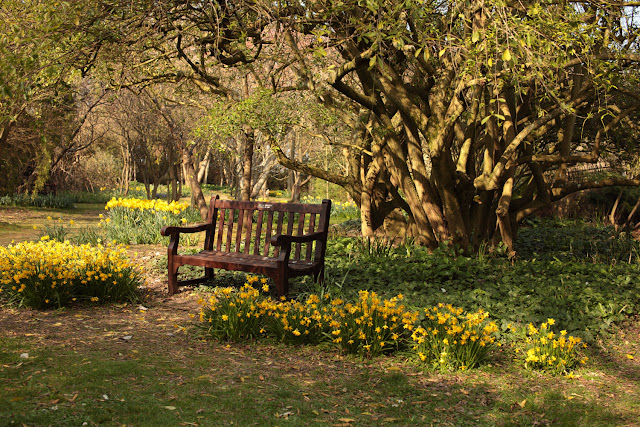
Shade white balance, F5.6 @ 1/125 100 ISO.
 The next shot is how the camera has seen it. This is radically different to the one above. The camera seems to have gone too far the other way and added too much blue. As I remember the shot it sat between the two. If I had to make a choice though, I would choose the top image.
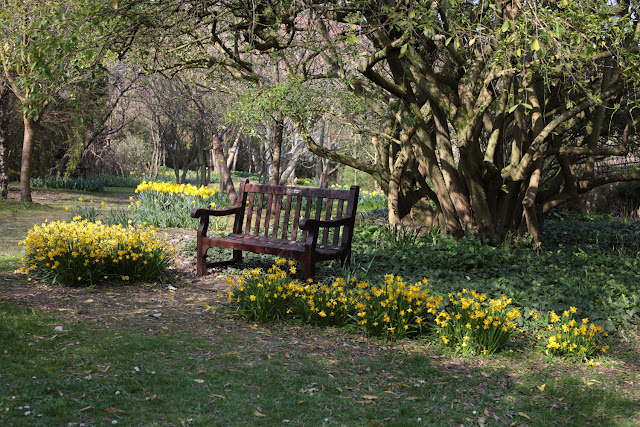
Auto white balance, F5.6 @1/125 100 ISO.
The following image has been taken with the camera set to sunny white balance. On my camera sunny is actually referred to a daylight. We know that daylight, or midday is considered the yard stick by which the temperature is measured so I am expecting the camera to not make any adjustment here. This image appears to sit half way between the auto setting and the shade setting, much as I remember the scene. Perhaps my 'open shade' wasn't shady enough and the shade setting has added too much orange to the scene?
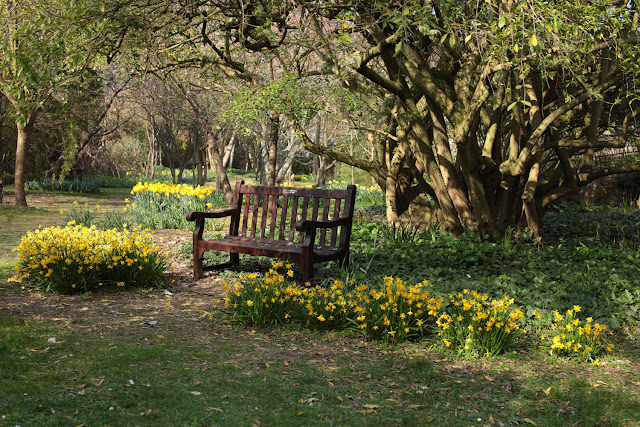
Sunny white balance, F5.6 1/125 100 ISO.
The final image in this sequence is using the cloudy setting. I am expecting the camera to add orange to compensate for a blueish cast and believe this is what has happened. This has warmed the image just past the sunny and auto settings. Again we have very saturated colours.
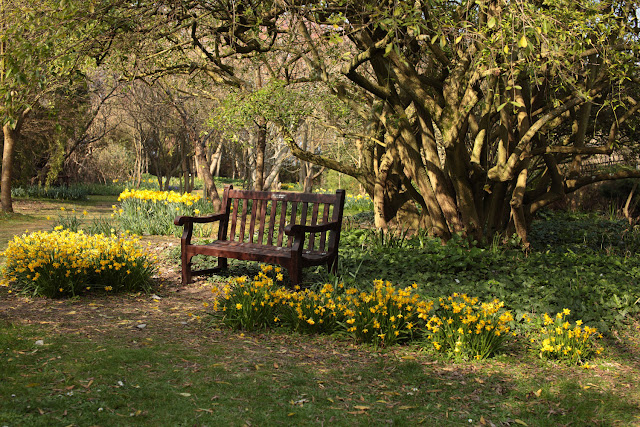
Cloudy white balance, F5.6 1/125 100 ISO.
The final sequence of images were taken in cloudy/overcast weather. Admittedly not the best of pictures but funny how all the clouds disappear when you need them! I have started this sequence with the cloudy white balance shot. This is a pretty accurate rendering of how I remember the scene.
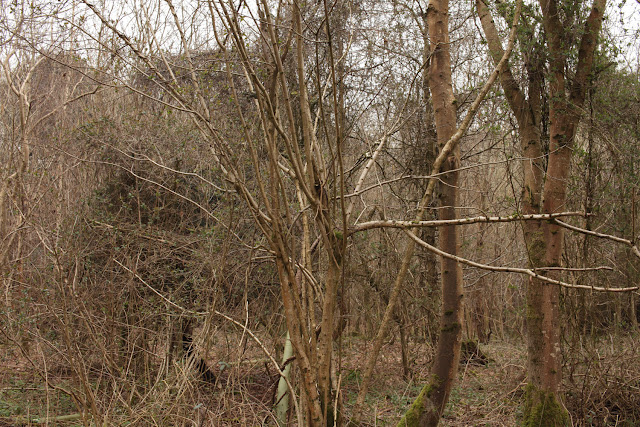
Cloudy white balance, F8 1/40 200 ISO.
Compare this to the cameras auto setting. Again the auto setting is radically different from the setting above! This shot is much too cold!
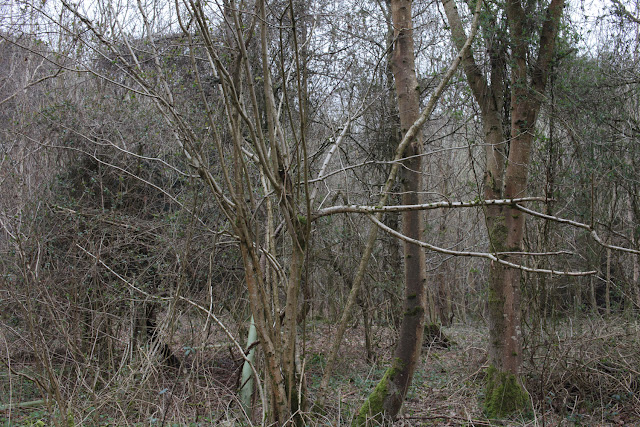
Auto white balance, F8 1/40 200 ISO 
Daylight white balance (below) is a little better than auto but still too cool.
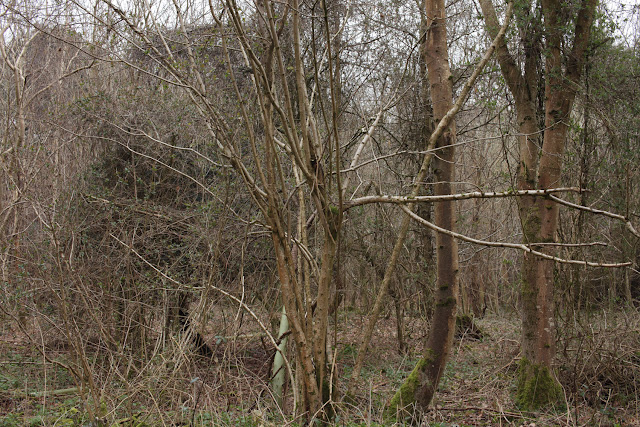
Daylight white balance, F8 1/40 200 ISO 
 And finally the shade white balance has warmed the image up too much. The colours are now too orange.
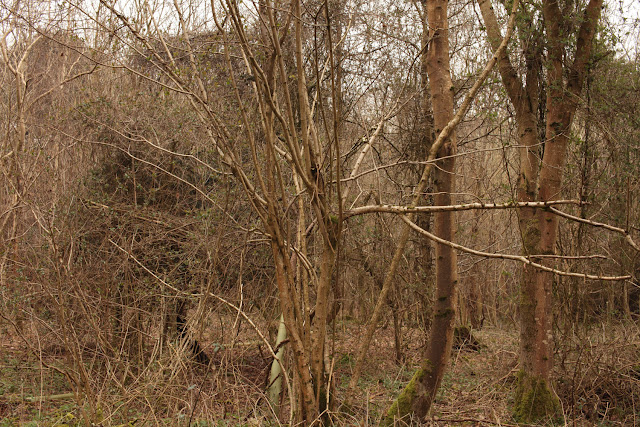
Shade white balance, F8 1/40 200 ISO 
This exercise has not only shown how the camera settings can vary and that one has to be careful about setting or choosing the white balance but also how the white balance could be deliberately set in a manner that may not faithfully reproduce the colours but could be used for creative effect. There is also a noticeable increase or decrease in saturation under different white balance settings. Also worthy of note is the fact that when viewing the images in isolation it is not always quite so obvious that there may be a colour cast present.

I shoot RAW all of the time and this is one reason that makes this worthwhile. The white balance can be tweaked in software after the shot has been taken. On important shoots I have also started using a grey card  for the same reason.

The final part of this exercise asks us to compare settings for an image shot partially in natural light and incandescent light. To make this picture I shot from within a room with the light on through a window to the natural light outside.
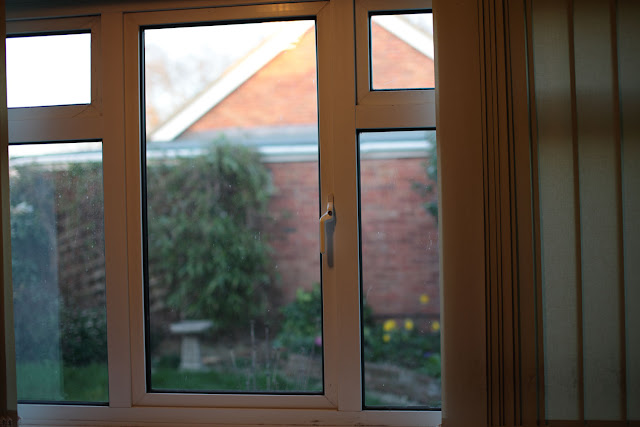
Auto white balance, F1.8 1/60 100 ISO.
 Above, auto white balance seems to have opted for the outside. The tungsten lighting is rendered in an orange colour.
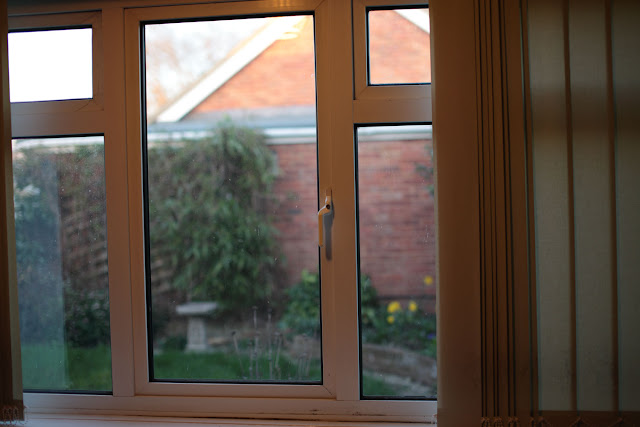
Daylight white balance, F1.8 1/60 100 ISO. 
 To prove the point that the auto has settled for daylight white balance, this is the daylight setting. Very similar to the photo above, maybe a little more orange.
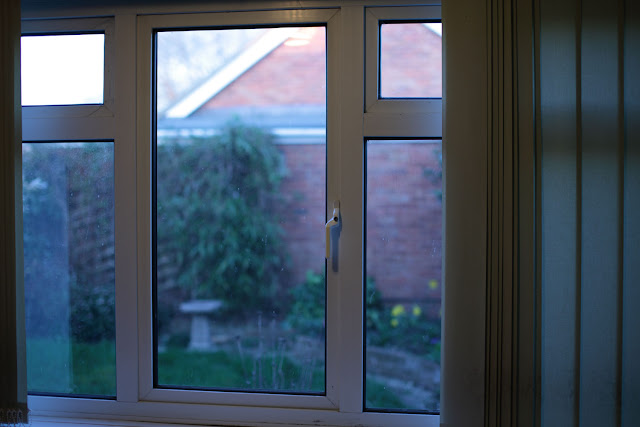
Tungsten white balance, F1.8 1/60 100 ISO. 
Finally with the white balance set to tungsten, the indoor lighting has been rendered in a more natural colour. This is at the cost of the view through the window which has now taken on a blue cast. In this situation it would be very difficult to satisfy both conditions in camera and a compromise would have to be made.

Pushed to make a choice, I think I would choose the daylight balanced version. There is no main subject to focus on so it is purely a matter of what feels right. I like the warm interior and natural lighting on the other side of the window and can identify with the colours this way. I feel there is little difference between this and the second shot but that the tungsten balanced photo is too cold.

Sources:
Hicks, N, "The photographers guide to light", David & Charles.

Sunday, 18 March 2012

Noise

In this section we are examining digital noise. Digital noise is often compared to grain in film but in fact the two are not the same. Digital noise is a sampling 'error' which can and often does result in the degradation of part of the image. Film grain is a necessary part of the chemical process that is developing and printing film.

Influencing factors on digital noise are the length of an exposure or a high ISO setting.

Prior to this exercise I have looked at the images 'Grey Texture' and 'Turkish Dance' in the Key Resources section of the student web site. This goes to show that distinguishing noise from a real pattern can be difficult as well as subjective.

To carry out this exercise I have set my camera to aperture priority and carried out a little test to make sure my slowest shutter speed is no longer than 1/2 a second. I settled on an aperture of F8. The camera was mounted on a tripod and I set up a house-plant with some white foam board as the background. I made sure the white foam board was in the shadow.

I then started shooting the same setup from my lowest aperture which is 50 ISO to the highest which is 25600. The ISO range I went through is as follows: 50 (L), 100, 125, 160, 200, 250, 320, 400, 500, 640, 800, 5000, 6400,  12800 (marked as H1) and finally 25600 (marked as H2). L, H1 and H2 are classed as ISO expansion in the camera manual (Canon EOS 5D MKII) and are not normally available unless a custom function is set.

Here is the 50 ISO image which will be the least noisy.

50 ISO F8. The lowest noise image
To make the details easier to see I have zoomed in to 100% on an area that shows both background and the foreground subject.

Detail from the 50 ISO image above.
We can assume a steady increase in noise as the ISO gets higher. Just to make it easier to see, lets compare the same detail in this shot to the highest ISO picture which is H1 (25600 ISO is ISO expansion. The normal highest ISO would be 6400).

Same detail as above but at 25600 ISO.
When comparing the two in this manner it is easy to see the degradation in the second image. The plain back-ground is now suffering from a lot of blocks of pink/purple and blue/green and no longer appears as a smooth, plain colour. The green stem is showing the pink/purple blocks more than the green with the latter presumably being swallowed up by the green of the stem. The pink of the flower is being disrupted and is showing mainly blue noise.

This noise is at its most extreme when using ISO expansion. When you look at the same section at 6400 which is the camera's normal top ISO setting, things are considerably better. The coloured noise is still evident in the background but the flower and the stem are a lot cleaner with the noise not so apparent. The main difference between this photo and the first 50 ISO version is that in this image the detail does not come across as being quite so smooth.

The petal at ISO 6400, the normal top ISO for the Canon EOS 5D MKII.
The final image I have added is at ISO 800. Things are again a lot smoother than the previous shot and I would say this is perfectly usable under normal circumstances. Compare the edges of the green stem and the smoothness of the background to the 6400 ISO version. Note also that the petal does not seem to be that different. 

ISO 800. Perfectly usable under normal conditions.
Examining the rest of the pictures shows a gradual increase in quality as we move nearer the 50 ISO. Once below 800 ISO the differences become so subtle that it is sometimes difficult to spot the reduction in noise on a picture by picture basis.

I think that the noise may have shown up more prominently had I had a darker shadow area judging by the effects of noise on the dark stem of the plant.


Saturday, 10 March 2012

Highlight Clipping

To start this exercise I have taken five exposures of a contrasty subject. The first photograph was exposed to get just the slightest amount of highlight alert showing on the camera LCD screen. The second shot was a stop more exposed than this. A further three images were then taken at one stop, two stops and three stops under the initial exposure.

P1. The base image showing the area where the highlight alert has started to flash on the camera.
(ISO 100, 1/160 @ F5.6 105mm. The image has had no processing done other than a RAW conversion to JPG.)
Below are the five shots, cropped to just the area where the highlight alert was activated.

P2. The base line image.
The base image (P2) shows just a little highlight clipping along the edge of the gutter (In the area indicated in P1). The gutter is still rendered in a satisfactory manner though. Very nearly all of the image information is still present along the side of the gutter and it is clear where the shade changes to darker on the edge of the vertical section.  There does not appear to be any colour cast and the overall image saturation is good.

P3. Base line + 1 stop.
Next up, Image P3 which is one stop over the base image. This has noticeable data loss. The side of the gutter appears as one long white strip. Branches of the tree in the background have disappeared completely and in the top left of the image the sky virtually blends in to the background white. There appears to be blue fringing around the top of the roof tiles and a possible band of fringing along the top of the gutter. The whole image is less saturated than the base image.

P4. Base line - 1 stop.
At one stop under the base image (P4) we have regained the saturation and detail in the sky and gutter. In fact the saturation is greater than in the base image. The blue fringing is no longer apparent along the roof tiles - perhaps it has merged back in with the blue of the sky. There is still information in the dark areas and this would in my opinion still make an acceptable image.

P5. Base line - 2 stops.
 P5 is starting to go too far the other way. We are starting to lose detail in the roof tiles and although the gutter is still clearly defined it appears that a darker fringe is starting to appear where the gutter meets the roof tiles. The image is very dark and we seem to be losing the range of tones we had in the base image.

P6. Base line - 3 stops.
The final crop (P6) has lost a lot of detail to the dark areas. There is definite fringing along the top of the gutter with a red/purple colour cast. Darker areas have completely blocked out and the area that initially had a highlight warning is about the only area left with some white showing.

At this stage I think I would be happy to accept the base image or image P4.

For the second part of this exercise I am going to process the image using the recovery sliders, which are called simply 'Highlight' and 'Shadow' in the Canon RAW converter.

In practice I found that the controls in the Canon software did not offer the range of adjustment that other software offers. On the bright side this does encourage accuracy at the time of taking the picture! To complete this exercise I switched to Adobe Lightroom, my version being 2.7.

Starting with the base image I turned on the highlight indicator and adjusted the recovery slider. At +19 the red highlight alert had completely gone. I did this several times paying attention to the rest of the image. Interestingly the base image has a larger area of highlight alert in Lightroom than it does in the Canon RAW converter. We must be seeing software differences in the way the linear data capture is being translated. When adjusting the recovery slider, our original warning area is the last to disappear.

Moving on to the second image (P3) which was exposed at +1 stop. This image has the whole sky coloured red as a clipping warning. The recovery slider has to be moved all the way up to +34 to lose the alerts. On this occasion all the red disappears at almost the same time. Even when all the clipping has been eradicated,the image still looks over-exposed.

On the final three pictures, there was no highlight clipping as they were under exposed. I still played with the recovery slider to see what effect it would have. It was noticeable that the lighter areas such as the sky were affected and became darker whereas the foreground wooden fence stayed very close to it's original exposure.

I checked the rest of the image for noise and digital errors and to be fair to Lightroom, I found virtually no evidence of this. What I did see is that the transition from dark to light happened more quickly when I ramped up the slider. This was apparent in areas such as the side of the gutter.

Here is the edit I chose as most favourable. It is 1 stop under the base image and didn't need any adjustment either way. There is detail in the shadow areas and the highlights were not clipped.

The final choice. 1 Stop under the base image.

Tuesday, 28 February 2012

Sensor linear Capture

In this exercise I am investigating how the camera sensor captures the image and the processing that is carried out by the camera to make the image more acceptable to us.

The camera sensor captures the image in a linear fashion which results in a very dark picture. We can mimic this by applying curves to a sample picture. The picture has been converted to 16 bit to avoid any image 'banding' that may happen if we process this as 8 bit.

Here is the image as it came from the camera. Note that the histogram has a good spread of tones.

The picture straight from the camera.

Now compare the image above to the one below that has been adjusted to resemble the linear capture from the sensor. This has been done by applying curves.

How the sensor captures the picture.
All the tones are squashed up to the left of the histogram (not to the right as the workbook states. We learnt earlier that dark tones sit at the left of the histogram!)

Finally we bring the image back to it's original state by applying another curve, the opposite to the curve applied to the picture above.

The dark image (top) with curves applied to bring the tones back to the original (bottom).
We have now mimicked what the camera sensor does for us. The importance of this to us comes when we have a lot of noise in the shadow areas. See the sharp incline in the curve in the last image. With the camera making this adjustment to bring the image up to an acceptable looking picture, it would also be increasing the visibility of any noise!

* Note that all the images on this page have been converted to 8 bit to enable them to be used in this exercise!

Sunday, 5 February 2012

Editing

Having shot a folder full of images during my ad-hoc shoot, I have now come to sorting the good from the bad. This is the classic definition of editing. The number of images I am looking to edit down to may vary depending on the assignment. For my ad-hoc shoot I took 160 photographs.

Canon Digital Photo Professional (DPP) RAW converter showing all images from the shoot.
The technical edit
The first sweep through the images is to remove any technically inferior shots. In DPP I can mark these images with a 'Reject' flag. The images can be selected by this flag to either delete them or to be moved to another folder. A quick way to do this is to use the 'quick viewer'. This allows me to step through the images quickly and mark any rejects.

The quick viewer and reject button (high-lighted).
I have stepped through my images and marked any rejects. At this stage I have not actually deleted any yet.

The selects
Having selected all my rejects I now invert the selection. From this new selection I will pick any images that appeal to me creatively. I can place these images in a 'virtual' collection' which does not actually move any files. I mark these files with a number two so that it is easy to group them.

The number 2 selects in a virtual collection.
At this point in the shoot I had already decided what kind of image I was trying to achieve. The shoot had started ad-hoc but when I got to the lake and reed bed's, I knew I wanted to get some good intentional camera movement shots.

The first selects.
Now for the tricky task of finding my first selects. I will mark these with a star so that they can still be selected alongside my seconds.

My first selects.
My first selects have narrowed the field to several versions of just two images.

Group and review
After a break I reviewed my choice by looking back over all my second selects, In this instance I am happy with the selection but I know from experience that I may have changed my mind.

Final choice
So here are my two final choices. Both are intentionally blurred to create a near abstract image., which is something I am experimenting with at the moment. To get this effect I used a neutral density filter on the camera and a slow shutter speed.

1.3 sec @ F16, ISO50, 50MM lens with ND filter.
Conclusion
I must admit that the workflow used here is pretty much the way I was doing things before but it was good to go over it and actually put it down in writing. To this editing process there should really be one more step, that is to back up all the work we have just carried out.

Having this workflow in place really does help to stay on top of things. With a good sized memory card and a modern digital camera you can soon find yourself dealing with a large number of files. This can be both labour intensive at the editing stage and costly for storage, especially if the files are not ever going to be used.

Sunday, 29 January 2012

Histogram

This exercise is to increase our familiarity with histograms.

The histogram is a graph of visual brightness running from darks to lights (right to left). The number of pixels per  level of brightness run from bottom to top.

More useful information about histograms can be found here at the Luminous Landscape web site.

For this exercise I have taken nine photographs in groups of three. Each group represents a different picture scenario with one image exposed correctly and then one image over by 1 stop and one image under by 1 stop. We will look at each group of histograms and see what happens.

The first three images are of a fairly flat/low dynamic range. We can expect to see the pixels bunched together around the tone of the photograph.

F8 @ 1/100 ISO100 50MM
As expected the pixels are grouped closely together as there is not a great deal of contrast. This image is correctly exposed using evaluative metering- it was a bit of a dull day! There is no highlight or shadow clipping which shows up as bright red areas for highlight and bright blue areas for shadow in the Canon RAW processor.

F8 @ 1/200 ISO100 50MM
The next shot is 1 stop under exposed. Clearly visible on the histogram is that the tonal range has shifted to the left. Still no highlight or shadow clipping.

F8 @ 1/50 ISO100 50MM
The last shot in the first group is 1 stop over exposed. The tonal range has shifted to the right - to the brighter side of the histogram. Highlight or shadow clipping are still not evident. I must say I prefer the exposure on this shot even though it's one stop over by the camera's reckoning.

The second set of three images covers a broader range of contrast.

F8 @ 1/50 ISO100 50MM
Here the histogram clearly shows a larger degree of contrast. The histogram is wider and in fact covers almost 3/4 of the cameras dynamic range. The large peak at the right represents the large number of brighter pixels.

F8 @ 1/100 ISO100 50MM
The same image at one stop over. Evaluative metering was used for all of these shots too. Again the graph has moved to the left to show the shift to darker tones. Not enough for any shadow clipping though.

F8 @ 1/25 ISO100 50MM
Finally, 1 stop over. Highlight clipping has started to occur in the brightest part of the sky as can be seen by the bright red areas in the top right of the image. Looking at the histogram we can see the pixels are starting to extend out of the right hand side of the graph area.

Now for the last image. Don't laugh but this untidy mess is my desk. The first series of shots I took for the high contrast section was carefully staged. After cleaning the windowsill I shot the row of cactus pots we have. The contrast however seemed to get a bit flattened by the light coming through the window and the histogram wasn't much wider than the one for the shots with the boat. When I was sitting at my desk looking at the shots I noticed that the immediate surroundings had a good range of tones so I shot that instead.

F2.2 @ 1/20 ISO200 50MM
In the first photograph which is correctly exposed, I have already had to make some decisions about exposure. For a good exposure I have allowed a very small amount of  the highlights to clip. This can be seen by the bright red areas to the left of the photograph. Examining the histogram will show the tiniest part of the graph extending beyond the right hand edge of the graph range.

F2.2 @ 1/10 ISO200 50MM
The one stop over-exposed version of this photo shows large areas of blown out highlights. We have lost a large part of the graph which has been clipped. These pixels no longer exist in our image.

F2.2 @ 1/40 ISO200 50MM
And finally the one stop under-exposed version. The bright blue areas show where shadow clipping has occurred, namely on the side of the pencil pot and on the right of the image. This is nowhere near as much as the highlight clipping. Note that even though we are clipping the shadows,some of the highlights are also still being clipped.

In this final image we can clearly see that we have exceeded the camera's dynamic range - we are losing both shadow and highlight detail and should we wish to print this image, we would have to make a decision about which pixels to sacrifice!